> For the complete documentation index, see [llms.txt](https://docs.dstock.com/llms.txt). Markdown versions of documentation pages are available by appending `.md` to page URLs; this page is available as [Markdown](https://docs.dstock.com/how-to-bridge-tradfi-assets-to-hyperliquid-using-dstock.md).
# How to Bridge TradFi Assets to Hyperliquid Using dStock
**Taking CRCL as an example (the process is identical for other TradFi tokens)**
1. **Onboard to Hyperliquid**: If you are new to Hyperliquid, visit the official website ([app.hyperliquid.xyz](https://app.hyperliquid.xyz/)) , connect your wallet, and deposit sufficient funds to get started.
2. **Acquire the Asset**: Go to Ondo Finance or use other channels like Binance Wallet or OKX Wallet to purchase **CRCLon**.
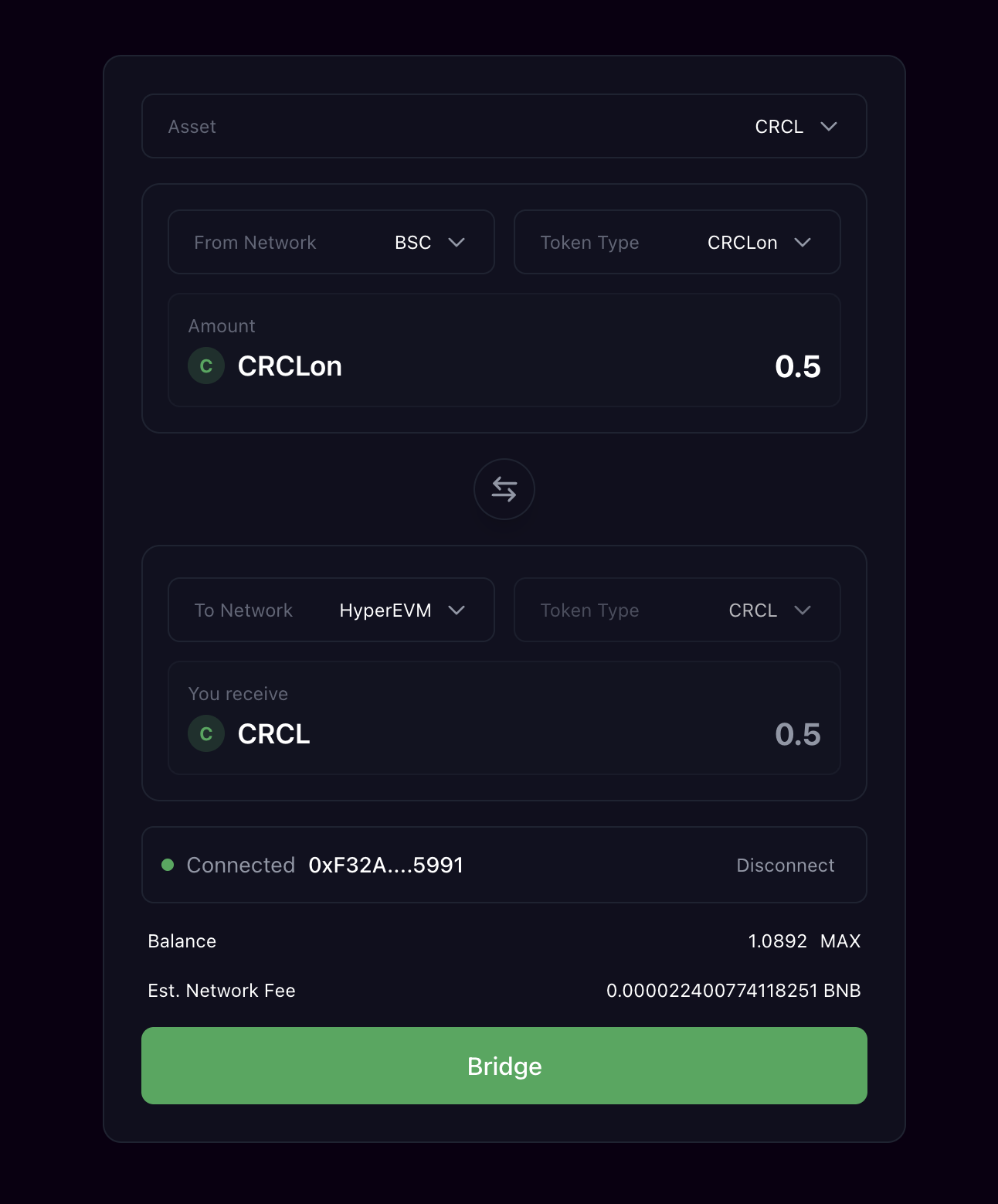
3. **Access the Bridge**: Navigate to the Bridge page on the dStock official website ([dstock.com/bridge](https://www.dstock.com/bridge)).
4. **Connect Wallet**: Connect your Web3 wallet to the dStock interface.
5. **Configure the Transfer**:
1. In the **From** section, select **CRCLon** on the **BSC** network and enter the amount you wish to bridge.
2. In the **To** section, select **CRCL** on the **HyperEVM** network.
6. **Approve Token**: Click the **Bridge** button to approve the transaction in your wallet.
7. **Execute Bridge**: Once the approval is confirmed, click the **Bridge** button again to initiate the transfer.
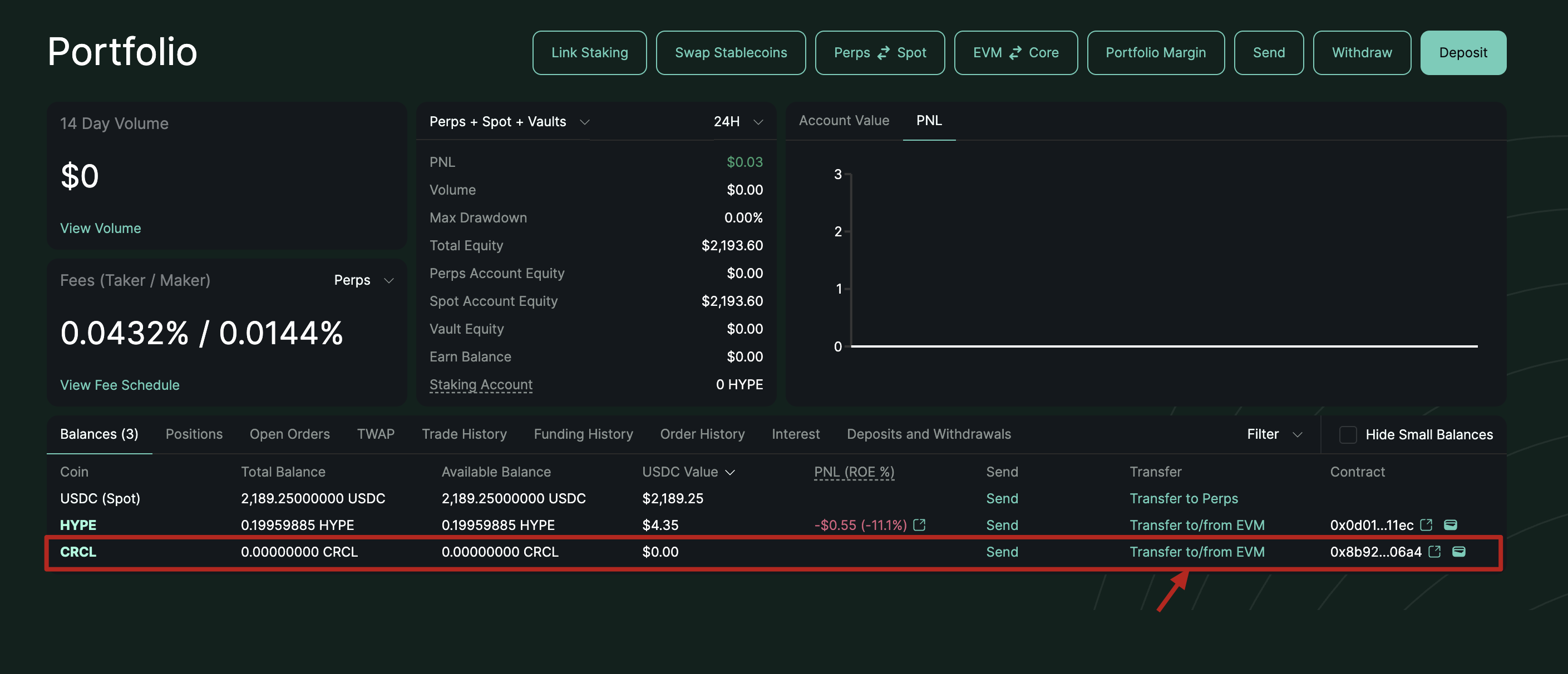
8. **Verify on Hyperliquid**: Return to the Hyperliquid website and navigate to the Portfolio page ([app.hyperliquid.xyz/portfolio](https://app.hyperliquid.xyz/portfolio)).
9. **Access Asset Management**: After connecting your wallet, navigate to the Portfolio page.
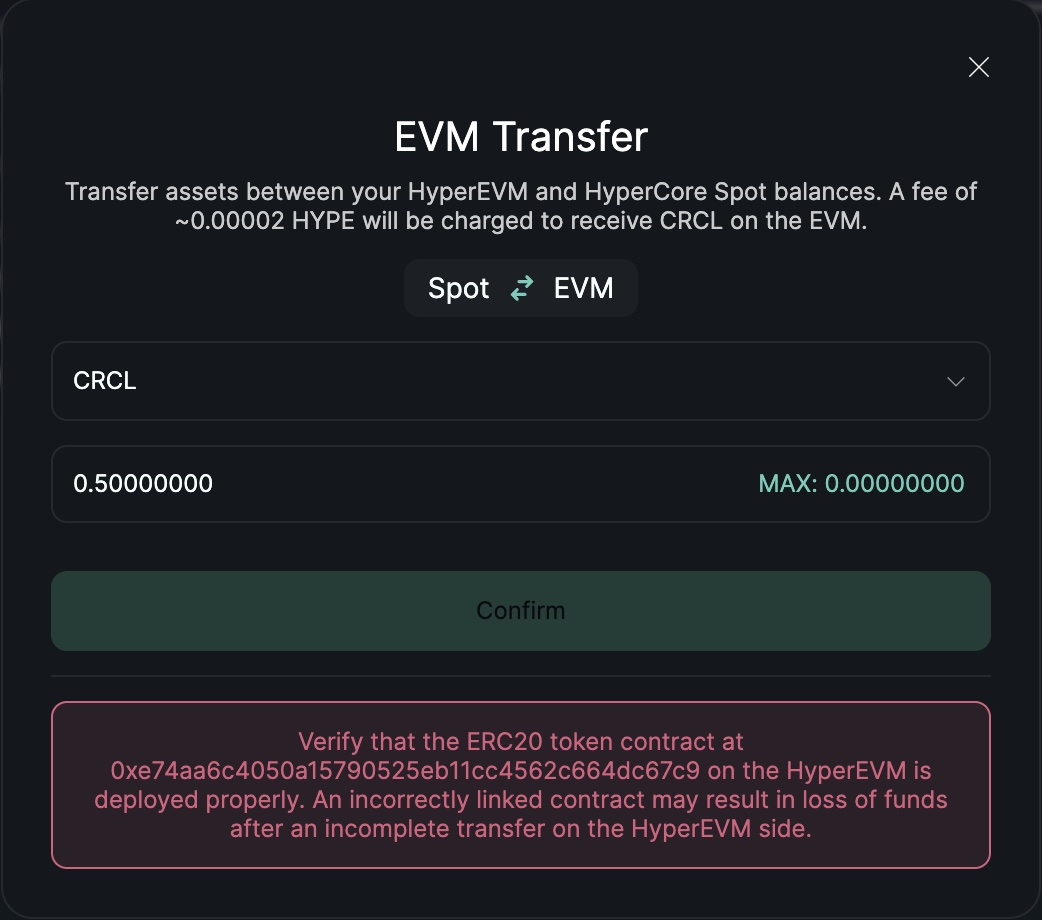
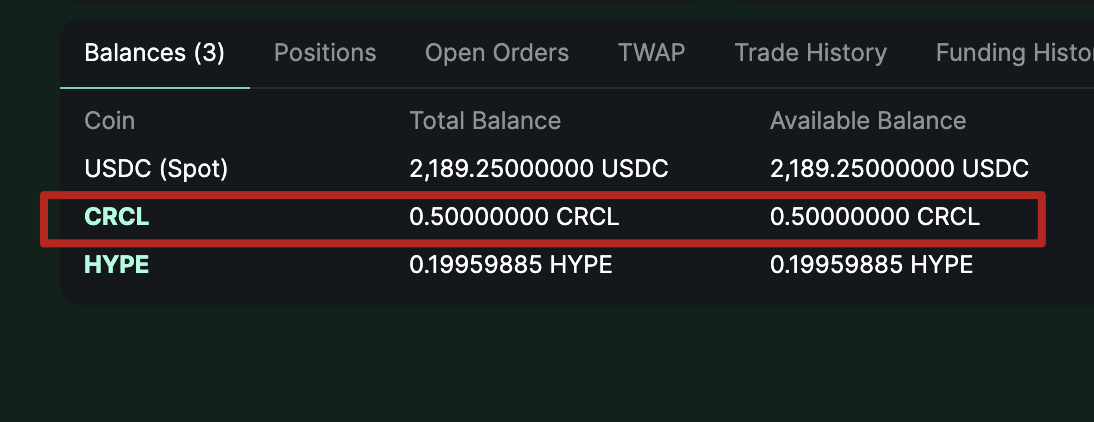
10. **Bridge to Core**: Look for the bridged asset under the Balances section. (If it doesn't appear immediately, please wait a moment and refresh the page.) Click on **Transfer to/from EVM**.
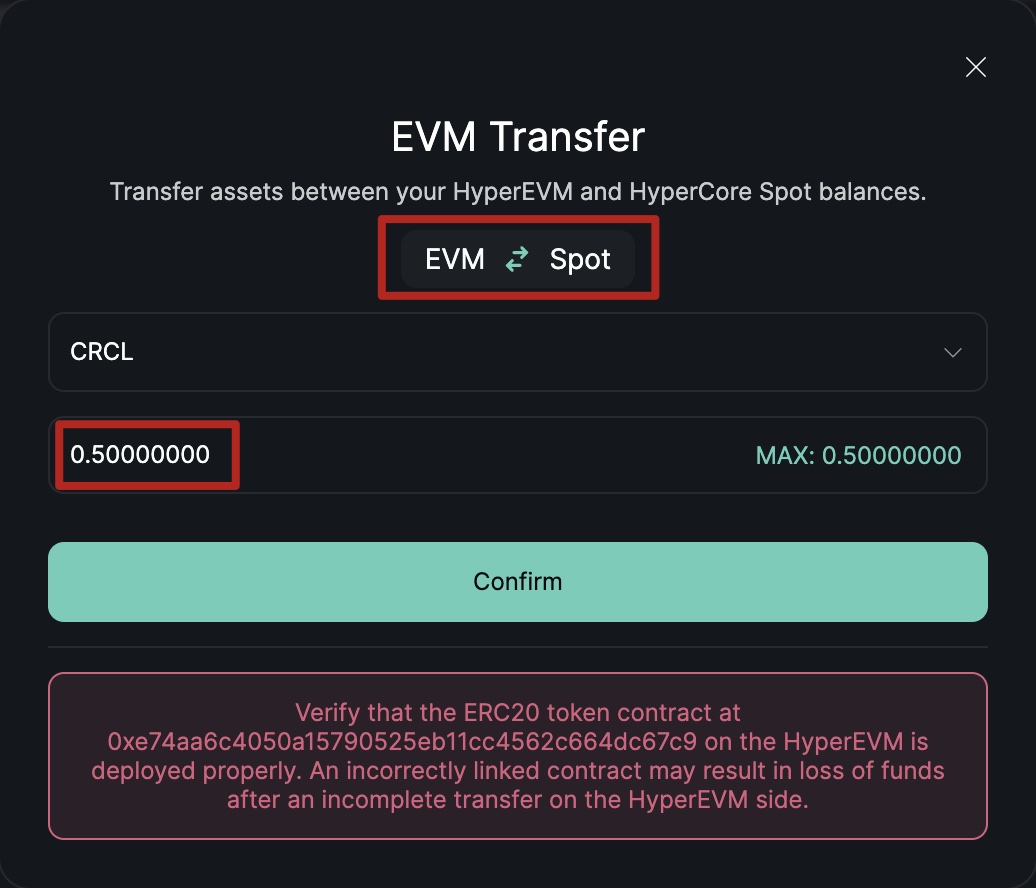
11. **Select Direction**: Switch the toggle to **EVM <=> Core**.
12. **Finalize Deposit**: Select **CRCL** from the dropdown menu, enter the amount, and click **Confirm**. (If you encounter any errors, please try again.)
---
# Agent Instructions
This documentation is published with GitBook. GitBook is the documentation platform designed so that both humans and AI agents can read, navigate, and reason over technical content effectively. Learn more at gitbook.com.
## Querying This Documentation
If you need additional information that is not directly available in this page, you can query the documentation dynamically by asking a question.
Perform an HTTP GET request on the current page URL with the `ask` query parameter, and the optional `goal` query parameter:
```
GET https://docs.dstock.com/how-to-bridge-tradfi-assets-to-hyperliquid-using-dstock.md?ask=&goal=
```
`ask` is the immediate question: it should be specific, self-contained, and written in natural language.
`goal` is optional and describes the broader end goal you are ultimately trying to accomplish on behalf of the user. GitBook uses it to tailor the answer towards what is most useful for that goal.
The response will contain a direct answer to the question and relevant excerpts and sources from the documentation.
Use this mechanism when the answer is not explicitly present in the current page, you need clarification or additional context, or you want to retrieve related documentation sections.